Blog · Measuring
Measuring with a LiDAR app, and bringing the scan in
If your phone has LiDAR, a free app can scan a room in a minute. Export it, open it in Urcrib, and it becomes your plan.
· 4 min read
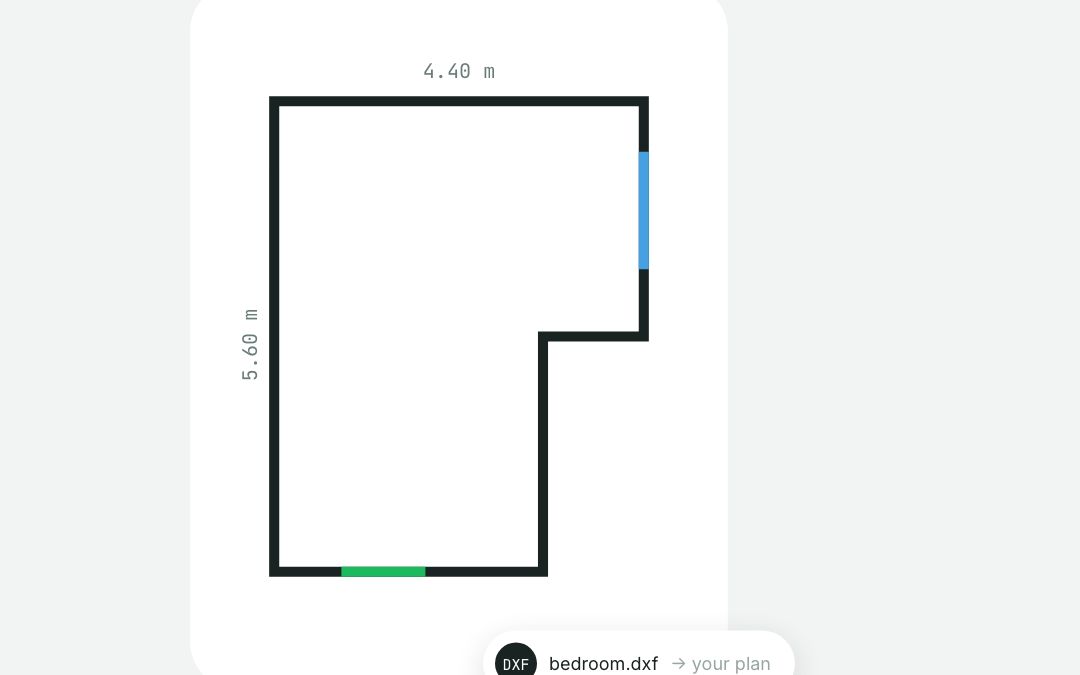
Recent Pro iPhones and iPads carry a LiDAR sensor, and several apps use it to scan a room into a floor plan. Export the scan, open it in Urcrib, and it becomes your plan — walls, doors and windows where the scan found them — without counting a single tile.
The apps
- Free: OpenPlan3D Capture, Lagarsoft LiDAR Scanner and Room Scanner.
- Paid: RoomScan Pro, magicplan and Polycam, which many decorators already use.
Scanning a room
- Open the lights and the curtains. LiDAR sees in the dark, but the app's camera tracking does not.
- Start in a corner and walk the room slowly, pointing the phone at the walls, not the floor.
- Pause at each door and window until the app marks it.
- Close the loop back at the corner you started from.
Exporting the file
Export as DXF or IFC — the two formats that describe walls, doors and windows rather than just a picture of them. In most apps it is under Share or Export; in OpenPlan3D Capture, choose DXF. Save it to Files, or send it to yourself.
Opening it in Urcrib
Start a new plan and choose Bring in a scan, then pick the file. It is read on your own phone, in the browser, and never uploaded to us. Check the room names, and you are ready to furnish.
How sure a scan is
An imported plan is recorded as a vector plan, good to about ±25 mm — not as a raw LiDAR reading, because a file can be edited or tidied before it reaches us. The plan is honest about that, like every other size.